

Enabling checkout/reading history
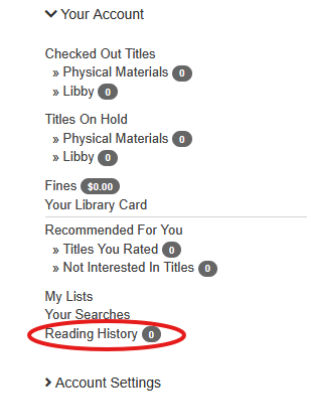
Log into account and click on “Reading history” from left account menu
Click on “Start Recording”
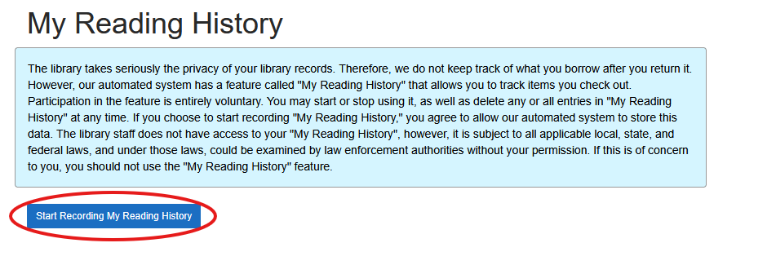
1 of 2 things will happen:
- If you have already opted into keeping Checkout/Reading History when card was issued, then any titles will be loaded automatically into Aspen.
- If you have not opted into keeping Checkout/Reading History when card was issued and/or are new to the library completely, then titles will begin recording from current checkouts moving forward
Deleting all or selected items
Choose to delete individual items (by clicking Delete) next to that item or all of the current items showing (by clicking Delete All) in reading history.
Delete All will delete current reading history but will continue storing future reading history.

Manually add titles to checkout/reading history
Click anywhere you see “Add to List” within the catalog to add titles to their Reading History.

You’ll see two tabs across the top of the pop-up modal – List and Reading History. When users click on Reading History, they can select the month and year they finished that title. Then, click Save to Reading History.
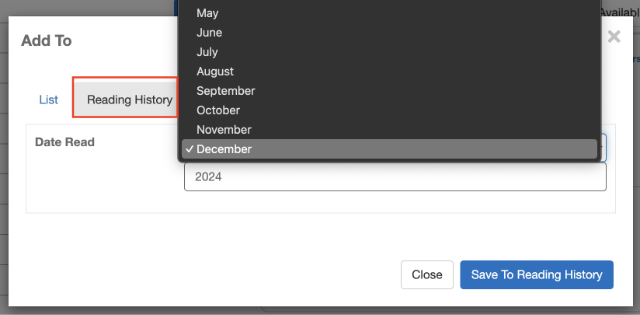
Titles will join any existing titles on the user’s Checkout-Reading History, or they can manually build their entire Reading History.

You’ll see when you accessed title as you navigate the catalog, as with automatically recorded Reading History.

Stop Recording Checkout-Reading History
You can choose to stop recording your reading history any time by going to My Account > Reading History and selecting Stop Recording My Reading History.
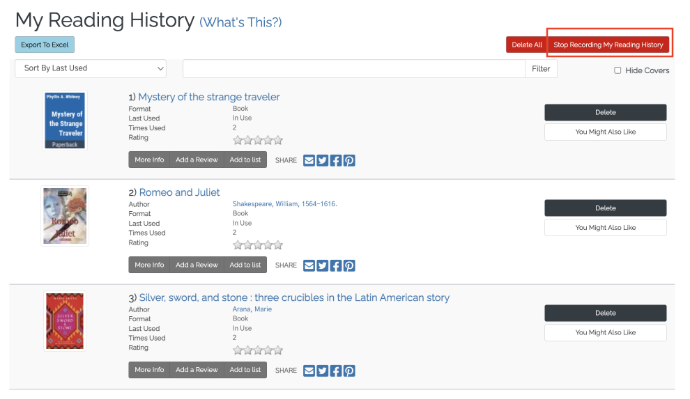
If you decide to Stop Recording “My Reading History”, you will receive a prompt alerting “Opting out of Reading History will also delete your entire reading history irreversibly. Proceed?”
You will have to click OK or CANCEL before completing or abandoning the process.
If you decide to Delete All, you will receive a prompt alerting “Your entire reading history will be irreversibly deleted. Proceed?”
- You will have to click OK or CANCEL before completing or abandoning the process.