

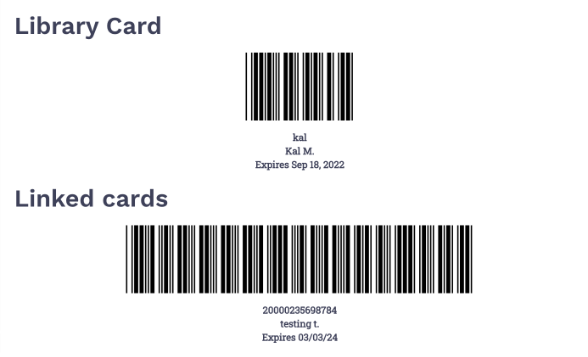
“Linked Accounts” is a feature that allows you to view the accounts for multiple family members in one convenient place. Examples of account linking might be your spouse, or your children. A scannable barcode is also available for each linked account and can be displayed on your mobile device. Linked Accounts can be used both within the Aspen Library Catalog using a Web browser, or by using the LiDA mobile app for Android or iOS devices.
How to Set Up Linked Accounts:
After logging into My Account, go to Account > Account Settings > Linked Accounts in the left-side menu.
From here, click on Add Account to add additional library card(s).
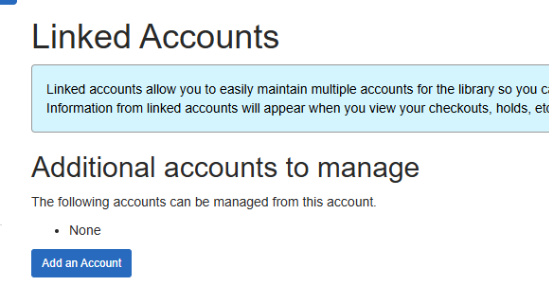
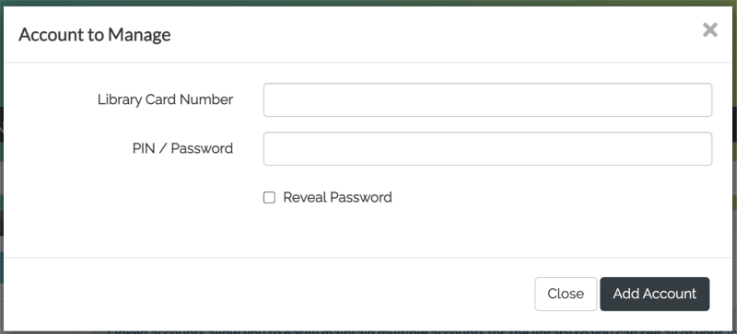
Enter the other library card(s) number and pin/password in order for the accounts to be linked.
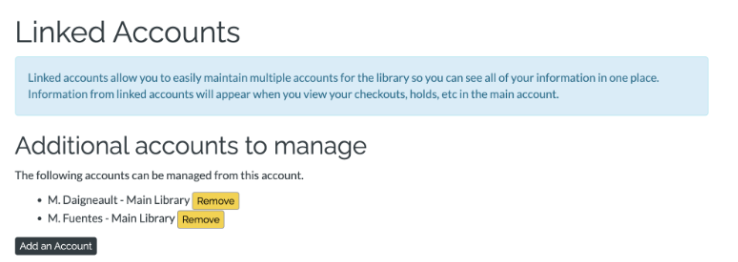
Once the account is linked, the username and home library will show up under “Additional accounts to manage”.
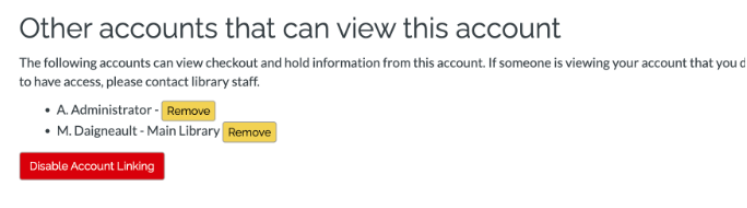
If another user has linked to your account, the user that has linked to your account will show up under “Other accounts that can view this account.”
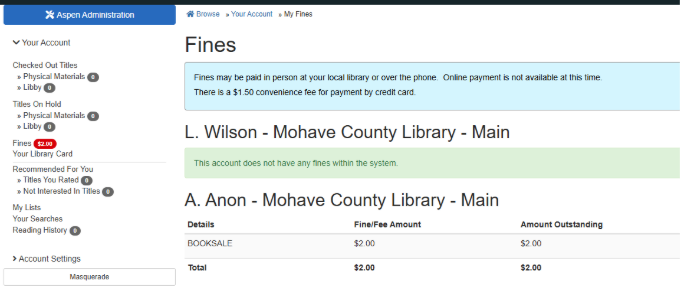
Once you have added a Linked Account, you will now start to see the user’s checkouts, holds, library card barcode and fines interfiled with your information.
Checkouts
You will now see the checkedout items for accounts you linked to specified by the field “Checked Out To” in My Account > Checked Out Titles.
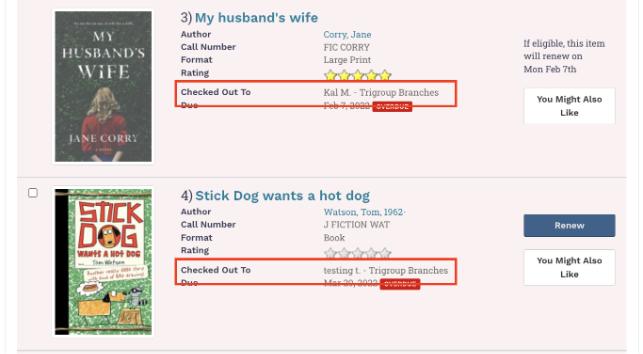
You can sort by Library Account to group and sort these checkouts.
Holds
You will now see the holds for accounts you linked to specified by the field “On Hold For” in My Account > Holds.
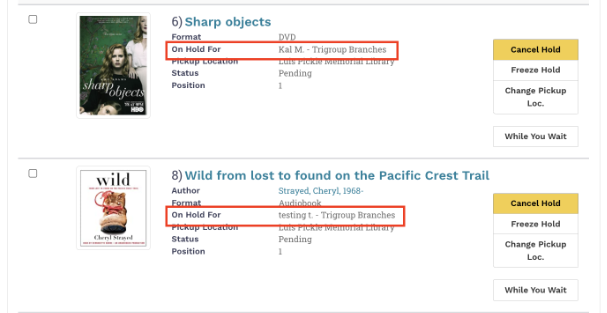
You can sort by Library Account to group and sort these holds.

eContent Checkouts and Holds
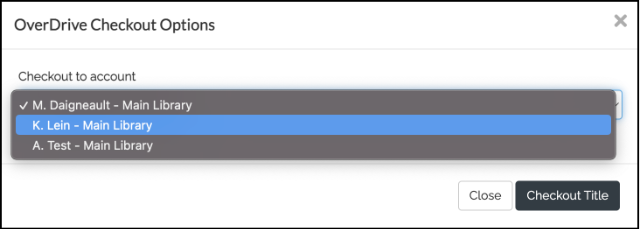
When checking out e-content or placing a hold, you can choose from a dropdown which account the hold/checkout the item should go on.
Library Card Barcode
You can view any of the barcodes for linked accounts that you have in My Account > My Library Card.
Fines
You can see any fines or fees of linked accounts.
Linked Account Reading History
For privacy purposes, Reading History will not show on linked accounts.